
Change your username
1
Open your Profile Widget
Open your Sitee editor and select the Profile Widget or click the Profile Card setting in the toolbar at the bottom.
2
Find the Username field
Scroll to the Username field in the Profile Widget settings.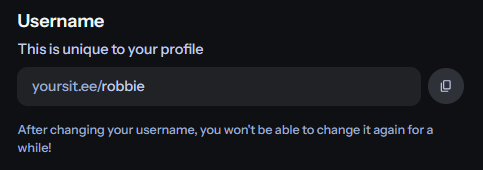
3
Enter your new username
Type the username you want to use. It must be available and follow our Username policy.
4
Save your changes
Select Save to update your username and public YourSitee link.
Username change limits
Free users can change their username once every 14 days.Available on Pro plan Users on the Pro plan can change their username once every 24 hours.
The cooldown starts when your username is changed. You will need to wait until it ends before choosing another username.
Before changing your username
Keep these points in mind:- Your previous YourSitee link may stop leading to your profile.
- Links you shared elsewhere will need to be updated.
- A username you leave behind may later become available to someone else.
- If you use a YourSitee domain as your Bluesky handle, you may need to verify the new domain again.
Related articles
What is your username?
Learn how your username identifies your account and creates your public YourSitee link.
Username policy
Review the rules and requirements that apply to YourSitee usernames.